Visual Basic Tutorial
Message Boxes
Objectives
This guide will help
you to: -
- Use message boxes in your application
Introduction
Displaying a Message Box
Adding a Title
Choosing a Button Style
Choosing an Icon Style
Using Return Values
Help
Desk Exercise
Message boxes are typically used
when you want to ask the user a question or display an error message. There are
six types of message boxes. You will learn how to use the more common
types.
The syntax for displaying a message box is
MgsgBox "THE MESSAGE"
To try it out - add an empty form to one of your VB projects. Don't
forget to make it the start-up form.
|
|
Add a command button to your form.
Leave it with the default name of 'Command1' |
 |
Now lets add code to display a message box. Double-click the command
button on your form. This should take you to the coding window.
Type in the following:-
|
|
|
Private Sub Command1_Click()
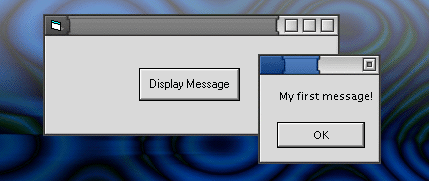
MsgBox "My first message!"
End Sub
|
When you run your
program and click on the command button you should see the following:-
You can also add a title to your message box. Change your code to
the following:-
|
|
|
Private Sub Command1_Click()
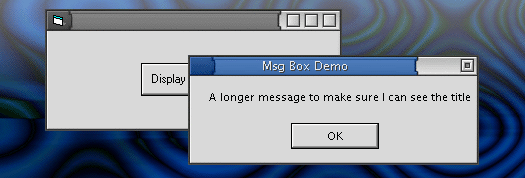
MsgBox "A longer message to make sure I can see the title", , "Msg Box Demo"
End Sub
|
Now you should a
message like the one shown below. Notice the Title of the
message box.
You can also decide what style of message box you want. This means
you can specify what buttons your message box should contain. You have
a few different choices such as an OK button only, or an
OK and Cancel button. Or perhaps you would prefer
Yes/No buttons. Here are a few examples.
|
|
|
Private Sub Command1_Click()
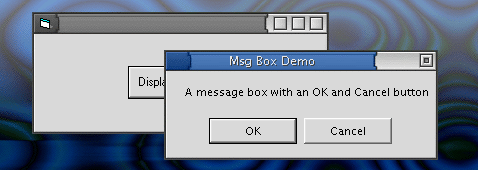
MsgBox "A message box with an OK and Cancel button", vbOKCancel, "Msg Box Demo"
End Sub
|
Now you should a
message like the one shown below.
Now try this one:-
|
|
|
Private Sub Command1_Click()
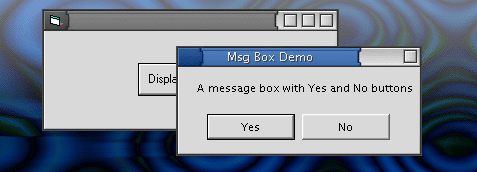
MsgBox "A message box with Yes and No buttons", vbYesNo, "Msg Box Demo"
End Sub
|
Now you should a
message like the one shown below.
There are other buttons you can have. Look at the list in the table
below and experiment for yourself.
|
Constant |
Value |
Description |
|
vbOKOnly |
0 |
Display OK button
only. |
|
vbOKCancel |
1 |
Display OK and
Cancel buttons. |
|
vbAbortRetryIgnore |
2 |
Display Abort,
Retry, and Ignore buttons. |
|
vbYesNoCancel |
3 |
Display Yes, No,
and Cancel buttons. |
|
vbYesNo |
4 |
Display Yes and
No buttons. |
|
vbRetryCancel |
5 |
Display Retry and
Cancel buttons. |
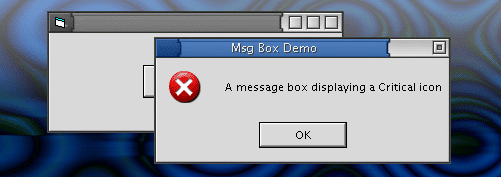
As well as choosing a button style, you can also choose an icon
style. Let's have a couple of examples:-
|
|
|
Private Sub Command1_Click()
MsgBox "A message box a 'Critical' icon", vbOKOnly + VBCritical, "Msg Box Demo"
End Sub
|
Now you should a
message like the one shown below.
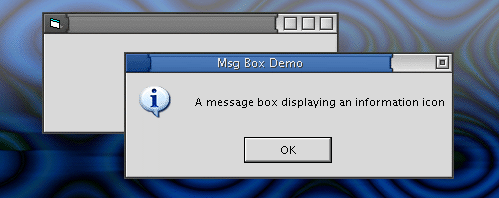
Or how about this one:-
|
|
|
Private Sub Command1_Click()
MsgBox "A message box displaying an information icon", vbInformation, "Msg Box
Demo"
End Sub
|
Now you should a
message like the one shown below.
There are other icons you can have. Look at the list in the table
below and experiment for yourself.
|
vbCritical |
16 |
Display Critical
Message icon. |
|
vbQuestion |
32 |
Display Warning Query
icon. |
|
vbExclamation |
48 |
Display Warning
Message icon. |
|
vbInformation |
64 |
Display Information
Message icon. |
If your message box just displays information to a user and there is only an
OK button then you do not have to add any more code. What
happens though if your message box has Yes/No buttons or
OK/Cancel buttons? Then you will need to know which button the
user clicked when they dismissed the message box.
To know which button the user clicked when they closed the message box
you have to catch the return value. Here is an example:-
|
|
|
Private Sub Command1_Click()
Dim response As Integer
response = MsgBox ("Do you really want to reformat
your C: drive?", vbYesNo + vbQuestion)
If response = vbYes Then
' User chose Yes.
MsgBox"You clicked Yes"
' Perform some action.
Else ' User chose No.
MsgBox "You clicked No"
' Perform some action.
End If
End Sub
|
Notice how I have
now included brackets in the MsgBox line -
MsgBox ("Do you really want to
reformat your C: drive?", vbYesNo + vbQuestion)
You only have to do
this if you want to get the return value. The line below does
not include the brackets because I don't want the return
value:-
MsgBox "You clicked Yes"
Now you should a
message like the one shown below.
|
|
 |
|
|
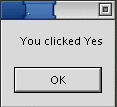
You also get another message
box depending on whether you click the Yes or No
button.

|
Of course, you don't have to display more
message boxes when the user clicks on the Yes or No
button. What happens when they click on a button is up to you.
You just have to specify the action you want in the IF-Else
part of the code. I.e. This part...
If response =
vbYes Then '
User chose Yes.
' Put code
in here to perform some action.
Else ' User chose No.
' Put code
in here to perform a different action.
End If
Just to finish off, the return values for the
different buttons are listed in the table below.
|
Constant |
Value |
Description |
|
vbOK |
1 |
OK |
|
vbCancel |
2 |
Cancel |
|
vbAbort |
3 |
Abort |
|
vbRetry |
4 |
Retry |
|
vbIgnore |
5 |
Ignore |
|
vbYes |
6 |
Yes |
|
vbNo |
7 |
No |
Just to be clear. If you have an OK/Cancel
button pair, to check which button the user clicked you could use an
IF-Else block like this:-
If response =
vbOK Then '
User chose Yes.
' Put code
in here to perform some action.
Else ' User chose No.
' Put code
in here to perform a different action.
End If
Why not experiment for yourself.
It is your turn to create a 'message boxes' for your 'help desk' application.
Deciding when you need to display message boxes in your
application is really up to you. It is useful to display messages when
you think you need to inform the user of some useful information, or if the
user has committed some error which you need to tell them about, or if you
need to give the user some advice.
Here are a few suggestions:-
~Try the activity~
|
Activity A |
Have you created your 'Fault
Log' form?
If so, you should display a message
informing the user if they forget to fill in one of the textboxes or
fill in the textboxes with the wrong type of information, such as
characters instead of say numbers.
|

~Try the activity~
|
Activity B |
Have you created your 'Login Dialog'
form?
Perhaps you have a message box that
displays if the user types in the wrong password. Like so...

Change the message box so it also mention
the user might have types in the wrong username. Also, add an
icon to the message box. Something like this...

|
Fini
|