|
 Visual Basic Tutorial
File
Handling - Writing to Files
Objectives
This guide will help
you to: -
- Save information to a file.
- Use variables in an Open file statement.
- Validate number and string entries in textboxes
Introduction
Creating
a Data File
The Open Statement
Open Statement Modes
Using
Variables
Simple
Validation
Validating Numbers
Validating Strings
Help
Desk Exercise
Many applications require data to be stored
or updated in some way. As an example, consider a program that needs to
store usernames and passwords. Or an employee database that stores names and
other details. To store data like this, we can use data files.
Data files may be accessed (i.e. read) or modified (i.e. written to) by VB programs.
When files are read this is called file input.
When files are written to, this is called file output.
In this tutorial you will learn the basics of file
Output in Visual Basic
To create a simple data file, you need to know about the
following:-
-
Open Statement
-
Open Statement Modes
-
Close statement
To learn about these statements, we
will create a simple student record application. Open Visual Basic and
draw the following controls on an empty form.

Make sure your textbox names from the top
box to the bottom are are Text1, Text2 and Text
3 and the command button is called Command1.
Now we need to add some code so that when a user types
information into the textboxes, it is saved to a text file. For that we
need to use the Open statement.
The Open statement creates a channel for reading from and writing to a file.
We want the information to be saved to a file when the user clicks on the
buttons labeled "Save". So we need to put the
code in the click event for this command button. So
double-click the button on the form. This should take you to the coding
window. VB should have created the following code for you.
|
|
Private Sub Command1_Click()
End Sub
|
Now we need to type some code in between the two lines.
Don't type in the line numbers.
|
|
1.
2.
3.
4.
5
|
Private Sub Command1_Click()
Dim
   fileName as String
fileName = App.Path & "\studentRecord.txt"
' specify file name.
Open fileName For
Output As #1 'Open file.
Write #1, Text1, Text2, Text3
'Write to file.
Close
'Close all open files
End Sub
|
Line 1: Dim
fileName as String
This line declares a String variable called fileName
Line 2: fileName = App.Path & "\studentRecord.txt"
This line specifies a name for your data file. The App.Path
part tells VB to create the file in your current folder, the folder where
your VB forms are. The actual filename part is studentRecord.txt.
Line 3: Open
fileName For Output As #1
The Open statement
creates a new data file with the name specified by fileName.
The For Output part means we want
to write data to the file. The As #1
part is just a temporary number for the file.
Line 4: Write #1, Text1, Text2, Text3
This line actually writes the data from each textbox Text1,
Text2 and Text3 into the file, in the order
given. Again, you have to specify the file number - #1.
This is in case you have lots of different files open. The file number
tells VB which file you are talking about.
Line 5:
Close
This line closes the file. You must always remember to
do this.
Now run your program - type some information into the
textboxes and click the "Save" button.
|
|
Although nothing appears to happen, a file should have been
created for you.
Check and see if you have a file in the same folder as your
VB forms. It should be called 'studentRecord.txt'.
When you open up this file. You should see the
information you entered into the textboxes saved inside.
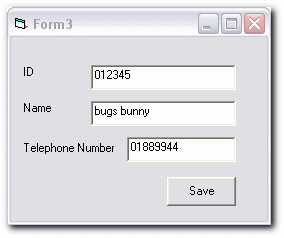
My file contains...
"012345","bugs bunny","01889944" |
|
Close your text file. Now try running your program
again. Try typing something different in the textboxes to previous and
clicking "Save".
|
|
If you open the file up again, you will not see the information saved
previously. e.g.
"012345","bugs bunny","01889944"
There is new information in the file.
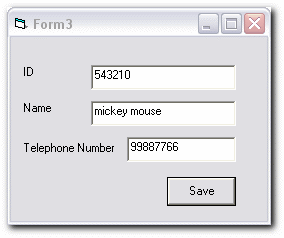
My file now contains...
"543210","mickey mouse","99887766" |
|
It appears that every time you open a file and write to it,
old information gets overwritten. This may be what you want. What
happens though if you want to save the old and new information? This is
easy to do, you just have to understand about Open Modes.
Open Modes are ways of reading and writing to
files. Here are some of them:-
|
|
Output
|
Opens a file for output, starting at the beginning of the file. If the file doesn't exist when you issue the Open statement, VB creates the file; otherwise, VB
overwrites the file.
|
|
|
Append
|
Opens a file for output, beginning at the end of the file if the file exists. If the file doesn't exist, VB creates the file. Append
never overwrites existing files.
|
|
|
Input
|
Opens a file for input, starting at the beginning of the file.
Data is read in the same order that it was sent to the file.
|
Now let's change our code so more
than one record can be saved to the file. Change the line....
|
|
|
Open
fileName For Output As #1 'Open file.
|
to...
|
|
|
Open
fileName For Append As #1 'Open file.
|
Try adding a few different names, id numbers etc. in the
textboxes. Every time you click "Save", a new
record (line) should be added to your text file. Re-open your text file
every time you click "Save" and convince yourself that
it works.
You will notice that information entered into the textboxes
gets saved to the data file in a certain way. As an example:-
|
|
Say I suppose to fill in the ID textbox and click "Save".
My file would contain...
"012345","bugs bunny","01889944"
As you can see, each separate data is separated by
commas. Also, data such as bugs bunny is saved between double
quote marks. I.e. "bugs bunny".
The first set of double quotes is empty because I did not
type anything into the ID field. |
|
Have you asked yourself why each separate data is saved
between double quote marks? This is because information from textboxes is
considered to be a string by VB unless we tell it differently.
Suppose I wanted to save some data not as a string,
but as a number. I could do that easily by creating variables to
hold the data from the textboxes.
Add lines 1 and 2 to your code and change line 6
so it is like the following:- Don't type in the line numbers.
|
|
1.
2.
3
4
5
6
7
|
Private Sub Command1_Click()
Dim telNum As
Long
telNum = Text3
Dim fileName as
String
fileName = App.Path & "\studentRecord.txt"
' specify file name.
Open fileName For
Output As #1 'Open file.
Write #1, Text1, Text2,
telNum 'Write to file.
Close
'Close all open files
End Sub
|
Here is what happens when I run the new code. I get...
"012345","bugs bunny",01889944
instead of
"012345","bugs bunny","01889944"
The telephone number data is now saved as a number value
instead of a String value. It is no longer saved to the file
between double quote marks.
~Try the activity~
|
Activity
A |
Create two more variable called id
and name. The id variable should be an
integer or long type and the name variable should be a
string.
Change the line of code shown below, so it uses these two variable
names instead of the text box names Text1 and Text2..
Write #1,
Text1, Text2, telNum
|
Have you noticed that if you forget to enter any
information into any of the textboxes, the information still gets saved to
the data file. As an example:-
|
|
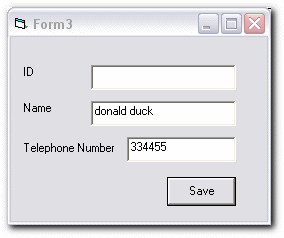
Say I suppose to fill in the ID textbox and click "Save".
My file would contain...
"","donald duck","334455"
The first set of double quotes is empty because I did not
type anything into the ID field.
For my application I have decided it is undesirable for this
to happen. I want to make sure the user types an ID number in the
textbox. |
|
Lets' look at my code as it is at present:-
|
|
|
Private Sub Command1_Click()
Dim telNum As
Long
telNum = Text3
Dim name As
String
name = Text2
Dim id As
Integer
id = Text1
Dim fileName as
String
fileName = App.Path & "\studentRecord.txt"
' specify file name.
Open fileName For
Output As #1 'Open file.
Write #1, id,
name, telNum 'Write to file.
Close
'Close all open files
End Sub
|
I am now going to use a VB function called isNumeric()to
check that the user has typed a number into the first textbox.
Lets' look at my new code. I have added the lines 1 to 6.
|
|
1.
2.
3
4
5
6
|
Private Sub Command1_Click()
Dim telNum As
Long
telNum = Text3
Dim name As
String
name = Text2
Dim id As
Integer
If (Not IsNumeric(Text1))
Then
MsgBox
"Please enter a valid ID number"
Exit Sub
Else
id = Text1
End If
Dim fileName as
String
fileName = App.Path & "\studentRecord.txt"
' specify file name.
Open fileName For
Output As #1 'Open file.
Write #1, id,
name, telNum 'Write to file.
Close
'Close all open files
End Sub
|
This is what happens if the user forgets to type a valid
number into the textbox.

~Try the activity~
|
Activity
B |
Type in code similar to above that uses the
is isNumeric() function to check if the telephone number
is a valid number.
|
Suppose I need to
make sure a user types characters into a textbox instead of numbers.
This is quite simple. All I need to do when the user clicks on the
"Save" button is check that the textbox is not
empty.
I can easily tell
if it is empty by using code like...
If
( Text1 = "" ) Then
Notice how any
empty textbox would return double quotes "" with
nothing in between them.
~Try the activity~
|
Activity
C |
Add the following code into an appropriate
place, to make sure the user types something into the name
textbox.
If (Text2 = "")
Then
MsgBox "please enter a name"
Exit Sub
Else
name = Text2
End If
|
It is your turn to create a 'fault log'
form for your 'help desk' application.
~Try the activity~
|
Activity
D |
Create a simple form that allows a user to
create an entry in a fault log. Here is a simple example
form. You could make yours much nicer.
|

Fini
|
|
| |
|


